Install and sign in
- Open the NewzAI listing on Google Play and tap Install.
- Open the app and sign in. Your Spaces and My Feed are saved to your account, so they are the same on your phone and at app.newzai.ai.
- Check the region button at the top of the screen (for example “India”) and switch it if you want news from another country.
The Android app has the same screens as the web app, plus a home-screen widget and notifications.
My Feed: your personal news feed
My Feed is the reason to install NewzAI. Instead of a feed chosen for you, you tell NewzAI what to follow — a city, a team, a company, a person, a policy — and it builds a feed from just those topics. Each topic is called a Space.
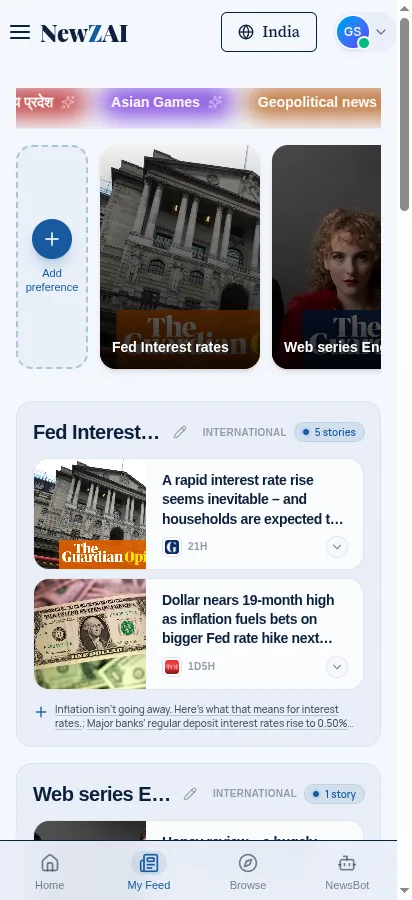
How My Feed is laid out
- Topic chips — a strip with one chip per Space. Tap a chip to scroll straight to that Space's section.
- Picture cards — one card per Space with the lead story's image. Tap a card to open that Space as a full-screen story you can swipe through (more below).
- Add preference — the first card in the row. Tap it to add a new Space.
- One section per Space — the Space's name, its region, and how many stories it has right now (e.g. “10 stories”), followed by its top stories and a line of further headlines.
- Mixed languages — a Hindi Space sits right next to an English one, each in its own language.
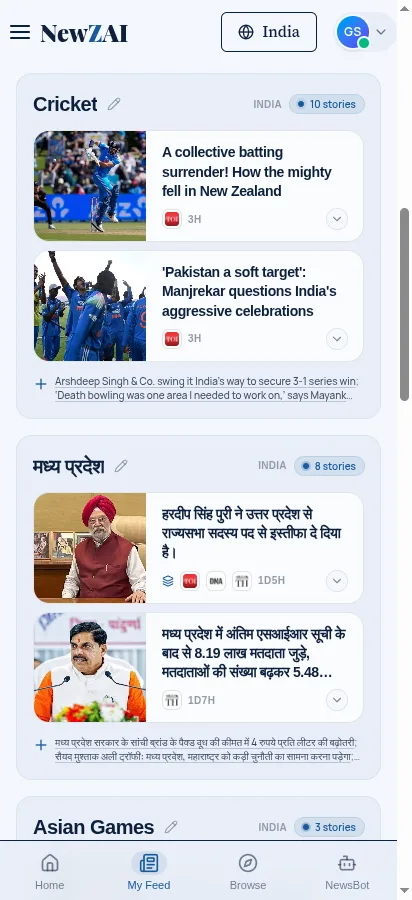
Swipe through a Space as a story
The quickest way to catch up is to tap a Space's picture card at the top of My Feed. The Space opens full screen, one news story at a time over its photo, like a story on social media:
- The top shows which Space you're in (e.g. “Fed Interest rates · International”), with buttons to share or close.
- Each screen is one story: headline, publisher, how long ago it was published, and a short preview. The bar and counter (“1 / 5”) show where you are in the Space.
- Swipe up for the next story and swipe down to go back, or use the arrow buttons. When you reach the end of a Space, the next swipe carries on into your next Space, so you can read your whole feed in one go. Swiping down on the first story closes it.
- Tap the headline to open the reading view with the full summary, which you can scroll. Tap the text again (or Show less) to go back to the story.
- NewsGraph opens related coverage, and Read Article opens the original report. When you come back, you're on the same story.
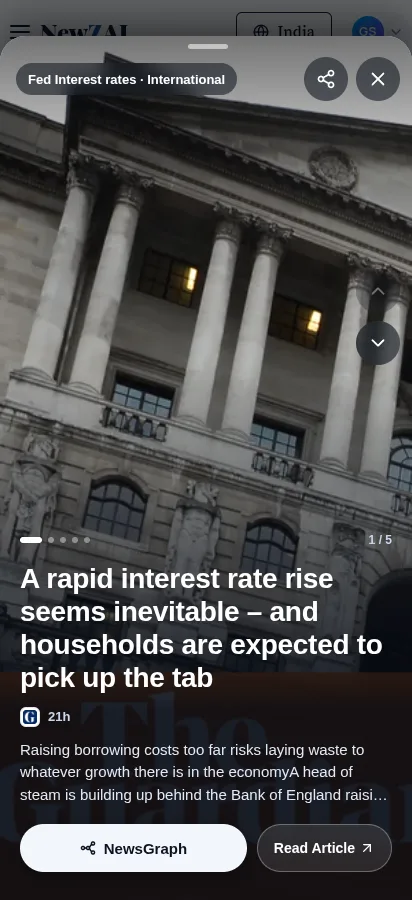

Expand a story in the list
Prefer scrolling? In each Space's section, tap the arrow on any story to expand it in place. You get a picture, a short summary, the publisher, a NewsGraph button for related coverage and a link to the original article. Tap Show less to fold it back.
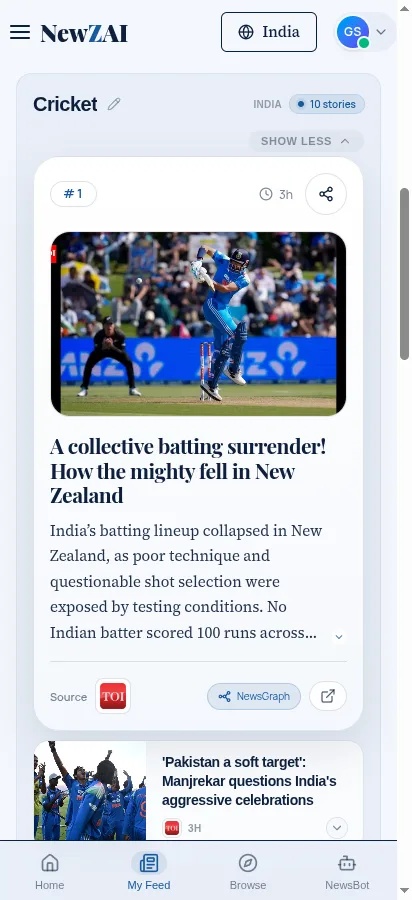
Add, edit or remove a Space
Tap Add preference, type your topic, pick a region and (optionally) a language, and submit. Tap the pencil next to a Space's name to change it. For a full walkthrough — including the Advanced Fields such as Search Algorithm and Lookback — read how to build a custom news feed with NewzAI Spaces.
A quick tour of the other tabs
The bar at the bottom of the screen has four tabs:
| Tab | What it shows |
|---|---|
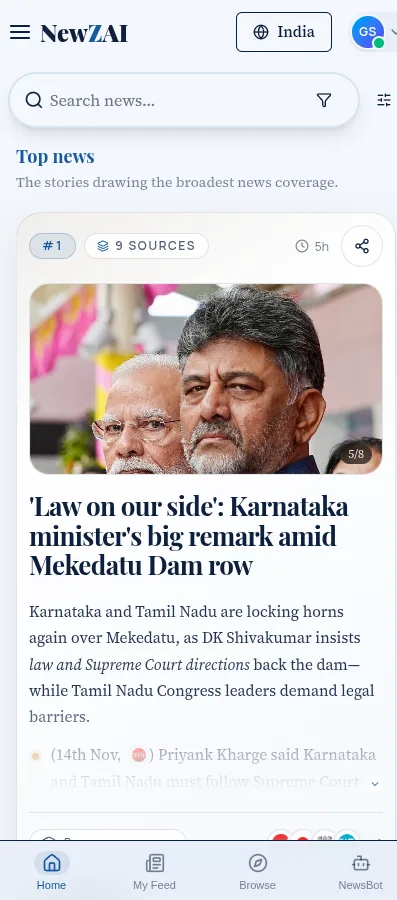
| Home | Top news — the stories drawing the broadest coverage — followed by the Latest stories for your region. |
| My Feed | Your personal feed, built from the topics (Spaces) you choose. The heart of the app. |
| Browse | Ready-made categories: Technology, Business, Entertainment, Sports and World. |
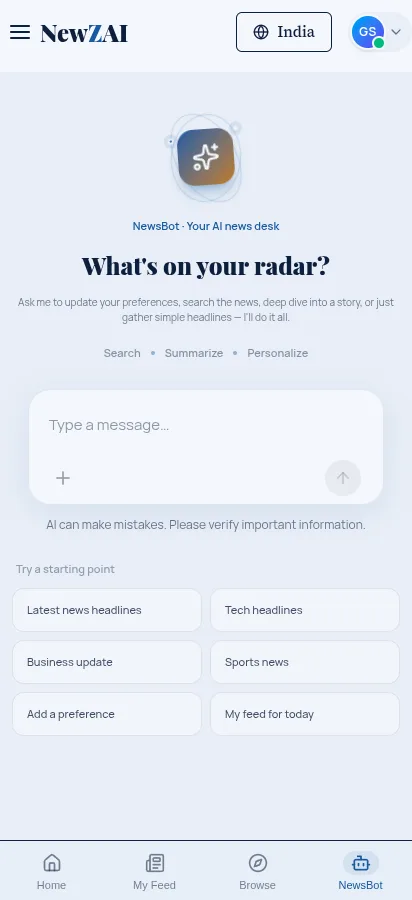
| NewsBot | An AI news desk you can chat with to search, summarise and personalise. |
Home
Home opens on Top news: the biggest stories of the moment, each built from many publishers (“9 sources”). Use the search bar at the top to look up anything; the filter button lets you limit results to the last N days, a particular media source, a source language or a source country.

Browse
Browse is for when you just want the day's news in a category — Technology, Business, Entertainment, Sports or World — ranked, summarised and with the source shown.
NewsBot
NewsBot is a chat assistant for the news. Ask it to search, to summarise a story, to gather headlines, or to update your preferences. Starter buttons include Latest news headlines, Tech headlines, Add a preference and My feed for today.
Android-only extras
Top-headlines home-screen widget
Add the NewzAI widget to see the current top headlines without opening the app. It follows the region and language you use in the app, refreshes on its own roughly every 30 minutes, and has a refresh button. Tap a headline to open that story in the app.
To add it: long-press an empty spot on your home screen, tap Widgets, find NewzAI, and drag the widget into place.
Notifications
Allow notifications and NewzAI will nudge you when a big story is taking off, so you can catch up on the full picture in one tap.
On an iPhone?
Open app.newzai.ai in Safari and add it to your Home Screen (step-by-step instructions) — My Feed, Browse and NewsBot all work the same way.
Take NewzAI further
Your NewzAI feed is also available to AI assistants. Connect the NewzAI MCP server to Claude, ChatGPT or OpenClaw and ask for “my feed for today” from a chat — here's how. To see the kind of coverage NewzAI clusters every week, read our weekly AI news roundup.