What is a Space?
Most news apps give you a fixed menu of categories. NewzAI lets you type your own. A Space is a saved topic — as broad as “Cricket” or as narrow as “India startup funding” — that NewzAI keeps filling with the latest coverage. Each Space has its own region and language, and every story in it is a cluster of reports from several publishers, summarised into one card with the sources shown.
You can create as many Spaces as you like. Some real examples: “Fed interest rates”, “Asian Games”, “BSNL”, “Bhopal”, or a Space in Hindi such as “मध्य प्रदेश”.
New to NewzAI? Start with the beginner's guide, then come back here.
How to create a Space, step by step
Step 1: Sign in
Open app.newzai.ai or the NewzAI Android app and sign in. Spaces are saved to your account, so they follow you between your phone and your computer.
Step 2: Add a new Space
There are a few ways to start:
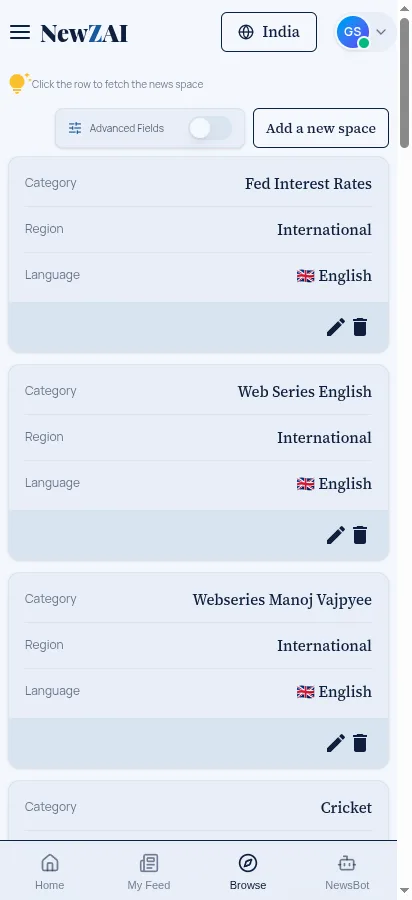
- Your spaces (from the menu) → Add a new space. This page also lists every Space you have, with buttons to edit or delete each one.
- My Feed → the Add preference card at the start of the row of Spaces.
- NewsBot → tap the Add a preference starter, or simply ask it to follow a topic for you.
- On a computer, the Custom panel on the Home page lets you add a Space from the sidebar too.
Step 3: Describe the topic
The form has three main fields:
- Category (required) — the topic in your own words. A person, a place, a company, an event or a theme.
- Region — United States, United Kingdom, India, Japan or International. This decides which country's news sources NewzAI looks at.
- Language — English, Hindi or Japanese. You can leave it blank.
Step 4: Tune the Advanced Fields (optional)
Open Advanced Fields in the same form for finer control:
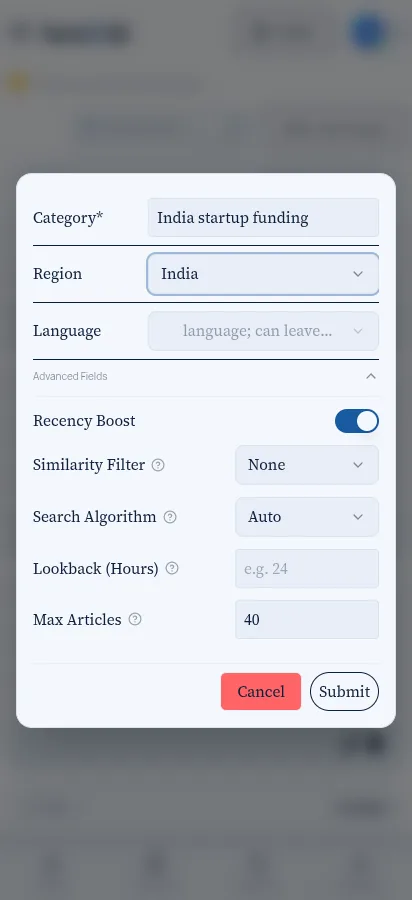
- Recency Boost — on by default; favours newer stories.
- Similarity Filter — None, Medium or High. A higher value raises the bar for how closely a story must match your category, so loosely related news is dropped.
- Search Algorithm — how your category is matched to articles (see the table below).
- Lookback (Hours) — only include news from the last N hours. Handy for fast-moving topics such as the stock market.
- Max Articles — the maximum number of articles (before clustering) to pull in; 40 by default, up to 50.
| Search Algorithm | When to use it |
|---|---|
| Auto | NewzAI picks the best algorithm for your category. Recommended for most Spaces. |
| Exact | Only articles that contain your category. Best for city names, celebrities and other proper nouns. |
| Meaning Based | Matches on meaning rather than words. Useful for broad or longer topics such as “Tokyo inflation rising”. |
| Keyword | Classic keyword matching. Useful for phrases like “latest bollywood movies”. |
| Hybrid | A mix of Keyword and Meaning Based. A good general-purpose choice. |
Step 5: Submit and open My Feed
Tap Submit. Your new Space appears in My Feed, alongside the others.
Reading your Spaces in My Feed
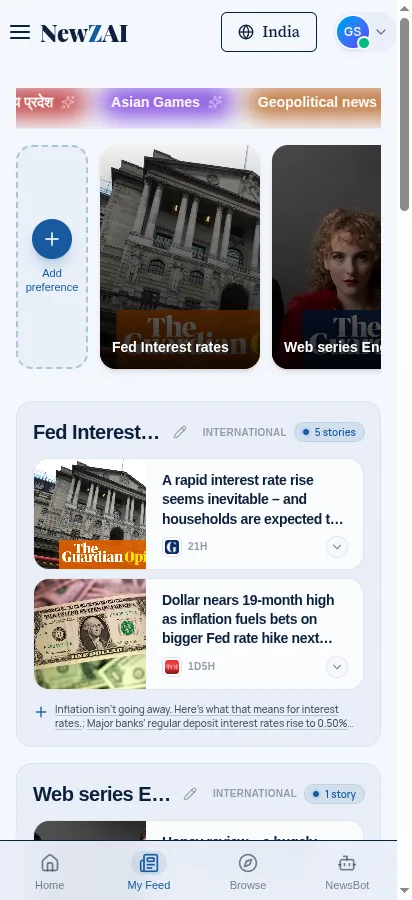
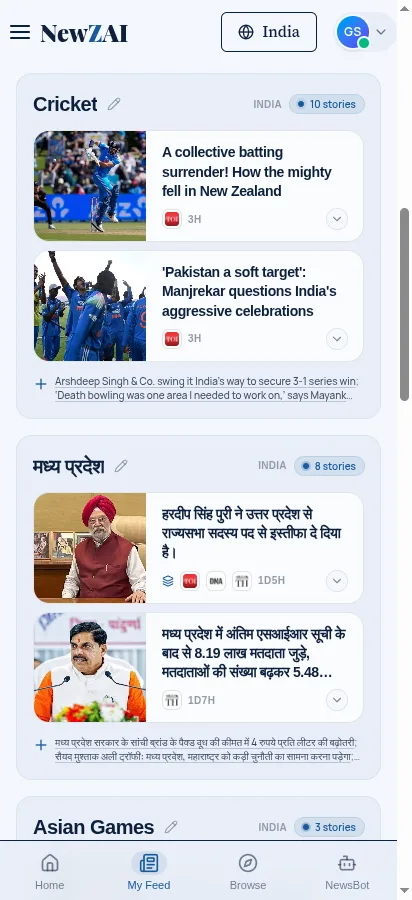
My Feed is where all your Spaces come together. A strip of topic chips at the top scrolls to any Space, and a row of picture cards — one per Space — opens it as full-screen stories. Below, each Space gets its own section showing its name, region and how many stories it has right now, followed by its top stories and a line of further headlines.
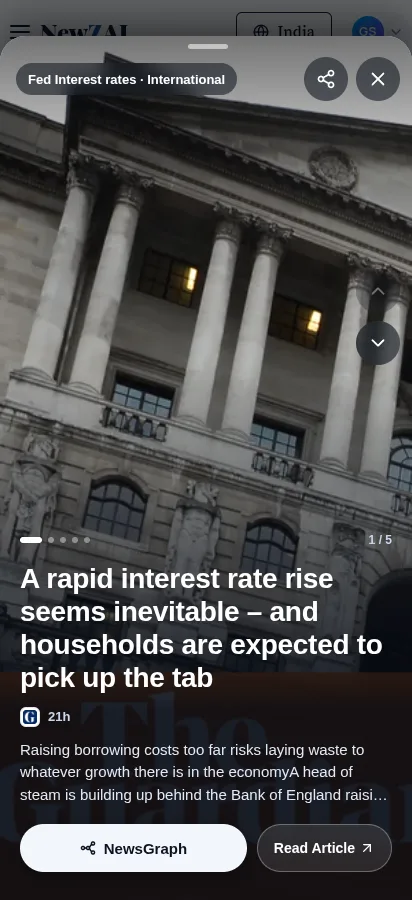
Swipe through a Space as a story
Tap a Space's picture card to open it full screen, one story at a time over its photo. Swipe up for the next story and down to go back (or use the arrows); at the end of a Space it carries on into your next one. Tap the headline to open a scrollable reading view with the full summary, then tap again to return. NewsGraph and Read Article are one tap away on every story.

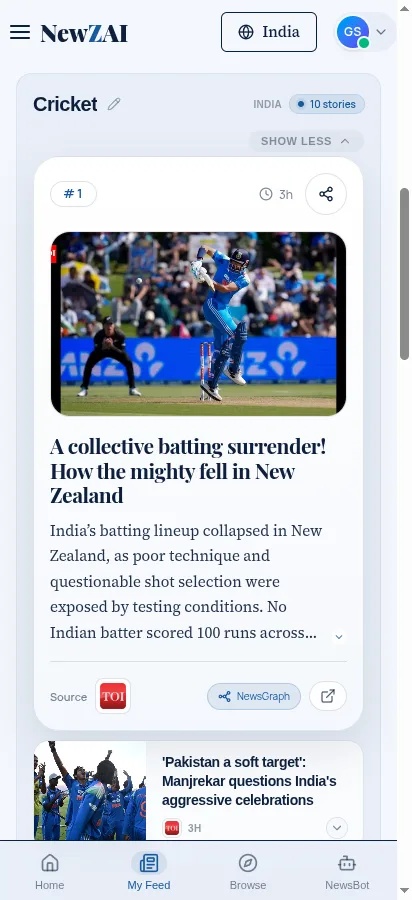
Edit a Space or expand a story in place
Tap the pencil next to a Space's name to edit it. In a Space's section, tap the arrow on a story to expand it into a full card with a summary, the source and the NewsGraph button.
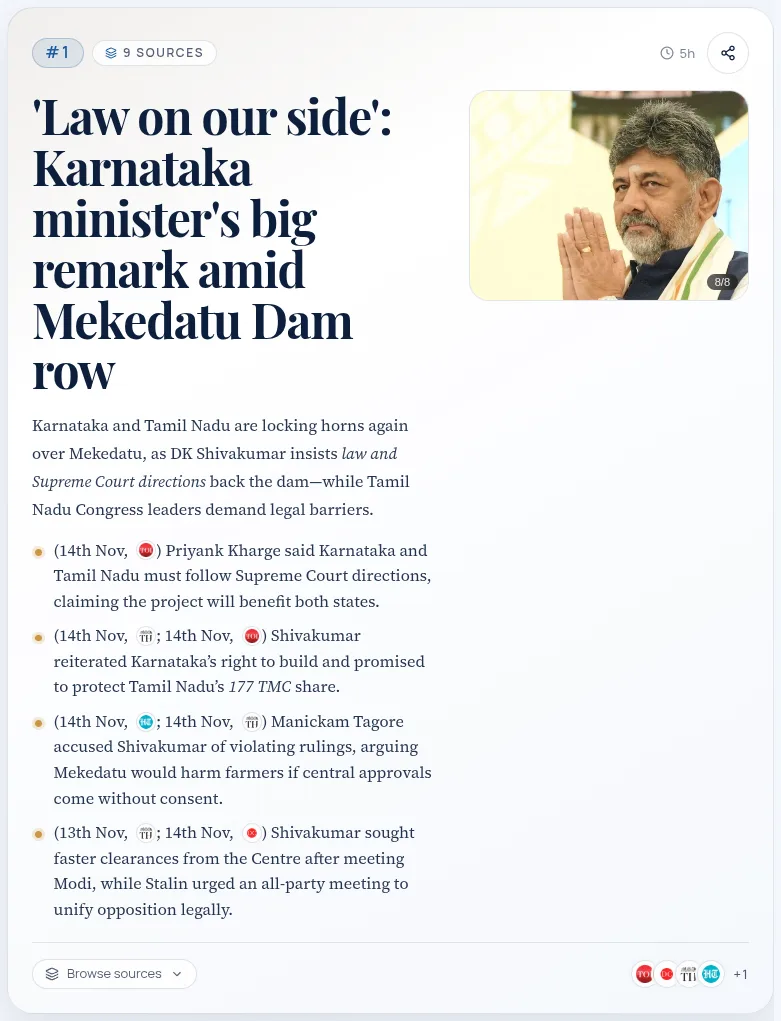
How to read a NewzAI story card
Big stories are covered by many outlets at once. NewzAI groups those reports into one card so you read the story once, not ten times:
- Rank and source count — e.g. “#1 · 9 sources”.
- Summary — the gist in two or three lines.
- Timeline bullets — dated updates, each tagged with the logo of the publisher that reported it.
- Browse sources — open the original articles behind the summary.
- NewsGraph and Share — explore related coverage, or send the story to someone.
For an example of the kind of timeline NewzAI builds from clustered coverage, see our Sonam Wangchuk protest timeline.
Tips for better Spaces
- Be specific. “India startup funding” gives a sharper feed than “Business”.
- Use Exact for names. People, cities and companies work best with the Exact algorithm.
- Use Meaning Based for themes. Longer ideas like “Tokyo inflation rising” match better on meaning than on keywords.
- Set a Lookback for fast topics. 24 hours keeps a market or election Space focused on today.
- Pick the right region. A Space about Indian cricket should use India so it reads Indian outlets.
Use your Spaces outside the app
Your Spaces are also available to AI assistants. Connect the NewzAI MCP server to Claude, ChatGPT or OpenClaw and you can ask for “my feed for today” or add a new Space from a chat. See how to get real-time news in ChatGPT, Claude and OpenClaw.